
Using the webapp / Activity
Activity
Verified against Flow 5.0.0-beta.39
On this page
Activity lists every run of the current workspace's workflows, newest first. Use it to answer "did last night's run work?", to find a failure, and to open a run and read its logs.
Open it from Activity in the side navigation. A workflow card's View Activity opens it filtered to that workflow, and Home's Runs today tile and All activity link open it too. Every member of the workspace can see it. An administrator can turn Activity off for the whole install under Admin › Settings › Features.
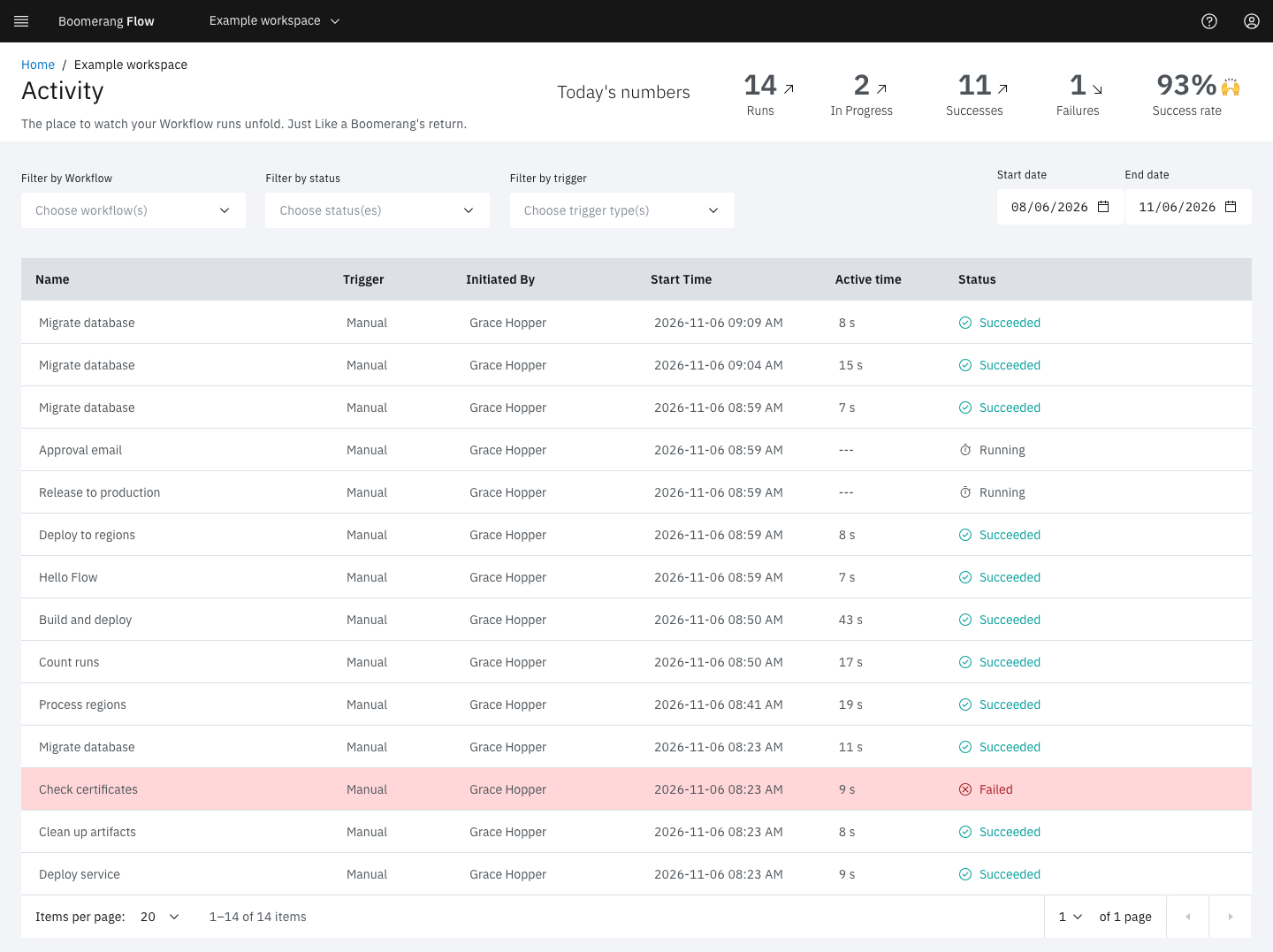
Today's numbers
The header counts today's runs in this workspace, whatever the filters below say:
- Runs: every run created today.
- In Progress: runs that are running or waiting.
- Successes and Failures.
- Success rate: successes and in-progress runs together, as a share of today's runs.
Filter the list
| Filter | What it narrows to |
|---|---|
| Filter by Workflow | One or more workflows |
| Filter by status | One or more statuses, such as Failed or Timed Out |
| Filter by trigger | Runs started by Schedule, Manual or Webhook |
| Start date and End date | Runs created in that range. The default is the last 3 months, up to today. |
The filters are kept in the page's address, so you can bookmark or share a filtered view.
The trigger filter has no option for runs started by an event, GitHub, a parent workflow or a retry. To break those down, use Insights, which filters on every trigger.
Read the table
| Column | Shows |
|---|---|
| Name | The workflow's display name. Select the header to sort by it. |
| Trigger | How the run started: Manual, Schedule, Webhook, Event, Github, Task (a parent workflow), Retry or Engine |
| Initiated By | The person, or the token's name, that started a manual, webhook or event run. Runs started by a schedule, a parent workflow or a retry show ---; the run page links to their origin instead. |
| Start Time | When the run started. A run that hasn't started yet, such as one waiting for a dispatcher or for a concurrency slot, shows ---. |
| Active time | Time spent executing, once the run has finished. Waits for approvals, manual tasks and sleeps, and pauses, are left out. |
| Status | The run's status. When Flow recorded a reason, it shows under the status: DeadlineExceeded for a timeout, or ConcurrencyLimit for a run skipped over its workflow's concurrency limit. |
Select a row to open the run page. Pages hold 10 runs by default, and up to 100.
How long runs are kept
Activity shows only the runs Flow still holds. Finished runs are deleted after the Activity Retention (days) setting, 365 days by default and never less than 60. See Runs.
Example: find out why last night's report failed
The "nightly-report" workflow runs on a schedule at 2:00 AM. In the morning:
- Open Activity.
- In Filter by Workflow, choose "nightly-report". In Filter by status, choose Failed and Timed Out.
- Select the top row.
- On the run page, find the task marked Failed in the task log and select View Log.
The last lines of the log, and the task's status message under View Details, usually name the cause: a missing file, a refused credential, or the container's exit code.
Next steps
- Runs: what the run page shows, and how to pause, cancel or retry a run.
- Retry a run: re-run a failed run from the task that failed.
- Insights: success rates and durations over time.