
Guides / Keep files between runs
Keep files between runs
Verified against Flow 5.0.0-beta.39
On this page
Each run gets its own run workspace, which Flow removes when the run completes. To keep files for the next run, download them as a workflow-scoped artifact at the start of the workflow and upload them again at the end. This guide is for workflow authors.
Before you start
- A workflow you can edit. You need the owner or editor role in its workspace.
- An artifact store. Your operator connects one; without it, artifact tasks fail with
ARTIFACTS_NOT_CONFIGURED. See Configuring. - Room in the workspace's artifact storage quota. Kept artifacts count toward it until they're replaced or deleted. See Artifacts and the run workspace.
How it works
A workflow-scoped artifact belongs to the workflow, not to one run. Any later run of the workflow can download it by name, it never expires, and a later upload of the same name replaces it.
The pattern has three parts:
- A Download Artifact task at the start, with scope
workflowand Optional on, restores the files. On the first run there's nothing to restore, and Optional lets the task succeed anyway. - Your tasks read and change the files in the run workspace.
- An Upload Artifact task at the end, with scope
workflow, saves them for the next run.
Both artifact tasks use the same Artifact name and the same path.
Count the runs of a workflow
This example keeps a counter in /workspace/state/count and adds one on every run.
Turn on the run workspace
- In the editor, open the Configure tab and select Workspace.
- Turn on Shared workspace for each run.
- Set Size to
1. - Leave Mount path blank, so tasks see the run workspace at
/workspace.
The artifact tasks read a relative path from /workspace. If you change Mount path, give them absolute paths under it instead.
Add the tasks
-
Open the Canvas tab. From the Artifacts category, drag Download Artifact onto the canvas and select its edit icon.
-
Fill in Edit Download Artifact, then select Apply:
Field Value Task name restore-stateArtifact name stateDestination path stateScope workflowOptional On Leave the read-only fields, such as Download link, empty: Flow fills them in when the task runs.
-
From the Utilities category, drag Execute Shell onto the canvas and select its edit icon.
-
In Task name, enter
count-runs. -
Select Shell Script, enter the script below, and select Update:
mkdir -p /workspace/state count=$(cat /workspace/state/count 2>/dev/null || echo 0) count=$((count + 1)) echo "$count" > /workspace/state/count echo "This workflow has run $count times" -
Select Apply.
-
From the Artifacts category, drag Upload Artifact onto the canvas and select its edit icon.
-
Fill in Edit Upload Artifact, then select Apply:
Field Value Task name save-stateArtifact name statePath stateScope workflowLeave Retention days blank: a workflow-scoped upload can't set it.
-
Link the tasks in order: Start,
restore-state,count-runs,save-state, End.

Run it twice
-
On the Workflows page, select Run it, then Run and View.
On this first run,
restore-statefinds no artifact and succeeds without downloading anything. Itsfoundresult isfalse. -
When the run ends, run the workflow again the same way.
-
On the second run's page, select View Log on
count-runs.
The log reads This workflow has run 2 times, and the run's status is Succeeded.
state is a folder, so Upload Artifact sends its contents as one .tar.gz, and Download Artifact unpacks them into the destination folder. A single file works the same way: give both tasks the file's path.
Find kept artifacts
| Where | What it shows |
|---|---|
| Configure › Artifacts in the editor | This workflow's kept artifacts: Name (select it to download), Size, and Uploaded by with a View run link |
| Manage workspace › Artifacts | Every artifact in the workspace. Set Scope to Workflow to see only kept ones, which read Kept until replaced under Expires |
| The run page's Artifacts tab | The artifacts that run uploaded, each with Scope Workflow or Run |
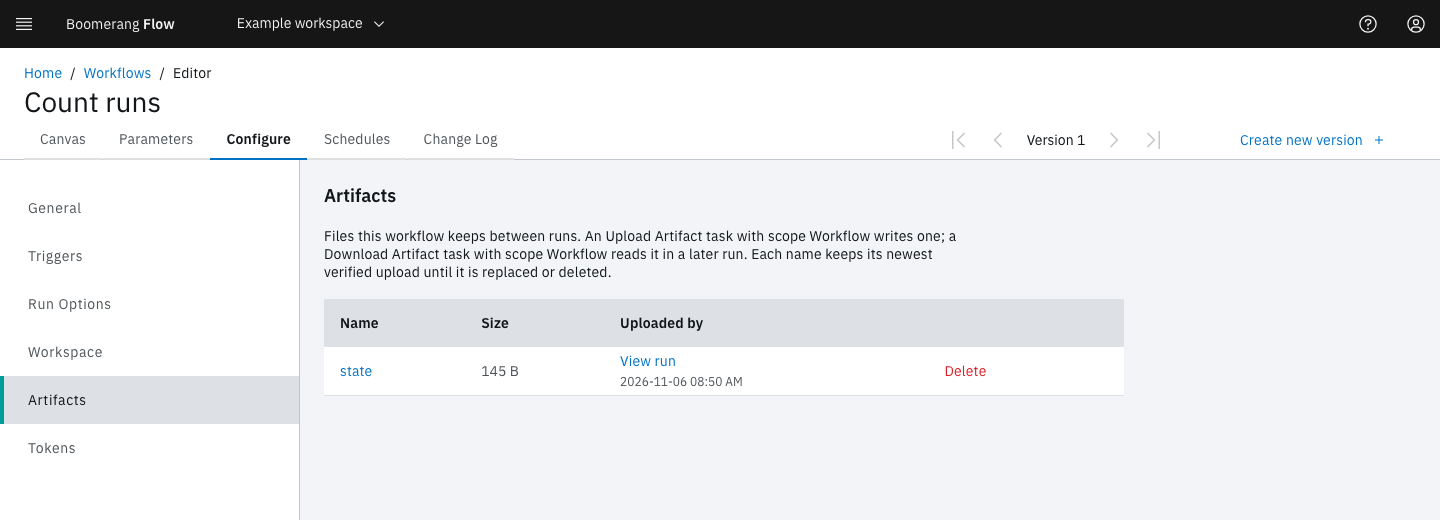
To start again from nothing, delete the artifact: on its row in Configure › Artifacts, select Delete, then Delete in Are you sure?. The next run's Download Artifact task finds nothing, and with Optional on it succeeds. This can't be undone.
Avoid lost updates
Two runs in flight at once both download the same artifact, and the upload that completes last wins: the other run's changes are lost. To keep updates in order, open Configure › Run Options, set Concurrency limit to 1, and leave Over the limit on Queue until a run ends.
Limits and failures
- One upload per name per run. A second upload of the same name in one run fails with
ARTIFACT_ALREADY_EXISTS. - Names start with a letter or digit, then letters, digits,
.,_or-, up to 128 characters. - Size. Admin › Settings › Artifacts › Largest Artifact (MB) caps one file, 1024 MB by default. An upload over it, or over the workspace's artifact storage, fails its task with
ArtifactRefused. Flow never deletes another artifact to make room. - Without Optional, a download of an artifact that doesn't exist fails the task with
ArtifactRefused. - Retries don't carry files. A retried run starts with an empty run workspace, so a re-run task can't see files a carried-over task wrote. Kept artifacts still download. See Retry a run.
- Workflow storage from Flow v3 is gone. A v3 workflow that used it shows Workflow storage was removed in Flow 5 under Configure › Workspace and can't run until you save a new version; use this pattern instead.
Not seeing what you expected?
- Why did Download Artifact succeed but restore nothing?
- Why is the next run Waiting instead of running?
Next steps
- Artifacts and the run workspace: scopes, retention and stored logs.
- Configure a workflow: the run workspace, run options and kept artifacts.
- Retry a run: what a retry keeps and what it doesn't.