
Guides / Configure a workflow
Configure a workflow
Verified against Flow 5.0.0-beta.39
On this page
The Configure tab holds a workflow's settings: its name, what starts it, how its runs behave, the run workspace its tasks share, the artifacts it keeps and its tokens. This guide is for workflow authors.
Before you start
- The Editor or Owner role in the workspace. See Manage a workspace.
- Open the workflow in the editor and select Configure. The sections are listed on the left: General, Triggers, Run Options, Workspace, Artifacts and Tokens.
Note
Configure has no Save button. Changes under General, Triggers, Run Options and Workspace are saved with the workflow's next version: select Create new version in the tab row (see Save a version). Deleting an artifact and creating or deleting a token take effect at once.
Set the name, description and icon
General opens first. Its Basic Information section holds:
| Field | What it sets |
|---|---|
| Name | The workflow's identifier: letters, numbers and dashes, up to 100 characters, unique in the workspace. Webhook and event URLs name the workflow by it. |
| Display Name (optional) | The name on the workflow's card and in the editor. Blank shows Name. |
| Description (optional) | Up to 250 characters, shown on the card. |
| Pick an icon (any icon) | The icon on the card. |
Add a label
Labels are key-value pairs in the Kubernetes label format, such as cost-centre=platform. The API can find workflows by label.
- Under Labels, select Add a new label.
- Enter a Label Key, such as
cost-centre. A key can have a prefix that is a DNS subdomain, such asexample.com/cost-centre. - Enter a Label Value, such as
platform. - Select Add.
The label shows as a tag, cost-centre=platform. Select the tag to edit it, or its × to remove it. Keys and values start and end with a letter or number, may contain dashes, underscores and dots, and are at most 63 characters.
Choose what starts a run
Triggers lists each way a run can start, each with an Enable toggle. If the section is empty, your administrator has turned workflow triggers off for the platform.
| Trigger | Starts a run when | Notes |
|---|---|---|
| Manual | Someone selects Run it, or a client calls the API | On for a new workflow. Turning it off disables Run it on the card. |
| Scheduler | One of the workflow's schedules is due | Add schedules on the Schedules tab. While this is off, no schedule runs, whatever its status. |
| Webhook | A system sends a request to the workflow's webhook URL | View usage example shows the URL. The sender needs a token: see Create a workflow token. |
| Events | A CloudEvent arrives that matches the filters | Add a row per filter with Add row: a Field, such as type, an Operation (in, matches or equals) and a Value. View usage example shows the URL and an example event. |
| GitHub | A GitHub event you chose arrives from a repository you chose | Needs the GitHub integration; until then the toggle is disabled and Integration Required shows. Choose repositories under Repository Filter and events under Events Filter. See Connect GitHub. |
The webhook and event URLs name the workflow by its workspace and Name: ?workspace=<workspace>&ref=<name>. See Triggers for each trigger's payload and how a run reads it.
Set the timeout, retries and concurrency
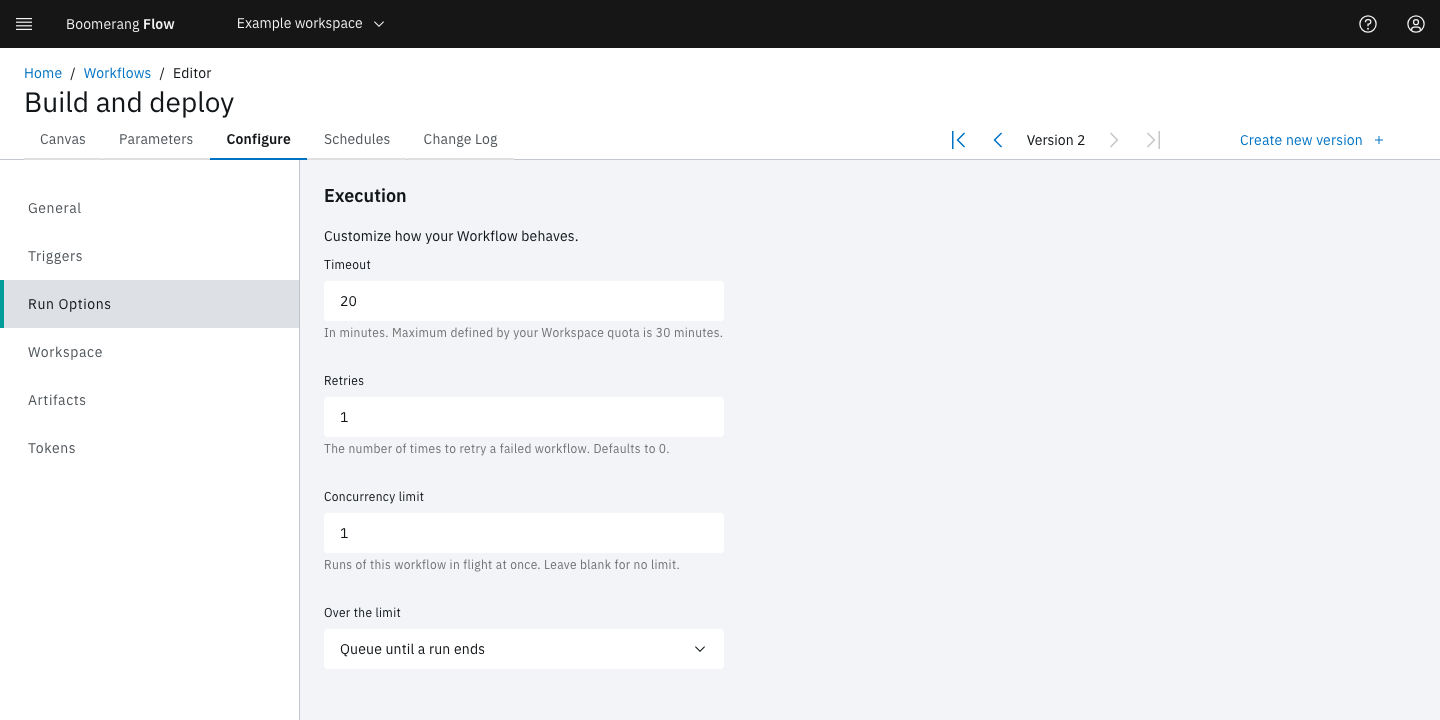
Run Options opens a section titled Execution.
| Field | What it does |
|---|---|
| Timeout | Minutes a run may spend executing before it ends Timed Out. Time spent waiting on an approval, a manual task, an event, a sleep, a lock or a child run isn't counted, nor is time paused. Leave it blank to use the workspace's run-duration quota, 30 minutes unless your administrator changed it. It can't exceed that quota. |
| Retries | How many times Flow starts the run again after it times out. Each retry is a new run. Defaults to 0. |
| Concurrency limit | How many runs of this workflow can be in progress at once, 1 or more. Leave it blank for no limit. |
| Over the limit | What happens to a run that would go over the limit. Queue until a run ends (the default) holds it as Waiting until a run of this workflow ends. Skip the run ends it at once as Cancelled. |
Retries applies only to a run that times out, although its helper text says "a failed workflow". To retry failed tasks, set retries on the task (see Retry a failed task), or retry the run yourself (see Retry a run).
The workspace's concurrent runs quota still applies: while it's reached, Run it is disabled whatever this workflow's limit. See Runs and Quotas.
For example, a nightly report that must never overlap itself: Timeout 20, Concurrency limit 1, Over the limit Skip the run. A run that starts while the last one is still going ends Cancelled, and the next night's run goes ahead.
Give tasks a shared run workspace
The Workspace section sets up the run workspace: a shared filesystem every task in a run can read and write. Flow creates it when the run starts and removes it when the run completes.
- Turn on Shared workspace for each run.
- Set Size, in gigabytes. It goes up to the workspace's storage quota, or to 100 GB without one.
- Optional: change Mount path, where every task sees the run workspace. Blank means
/workspace. - Save a version.
The next run has the run workspace. For example, an Execute Shell task writes /workspace/version.txt, and a later Read File to Parameter task with File Path /workspace/version.txt returns the file's text as its content result.
The run workspace doesn't outlive the run. To keep files between runs, use Upload Artifact and Download Artifact with scope Workflow: see Keep files between runs.
Note
A workflow from Flow v3 that used Workflow storage shows Workflow storage was removed in Flow 5. It can't run until you save a new version.
Manage kept artifacts
Artifacts lists the files this workflow keeps between runs. An Upload Artifact task with scope Workflow writes one, and a Download Artifact task with scope Workflow reads it in a later run. Each name keeps its newest upload until it's replaced or deleted.
The list shows each artifact's Name (select it to download the file), Size and Uploaded by, with a View run link to the run that uploaded it.
To delete a kept artifact:
- On its row, select Delete.
- In Are you sure?, select Delete.
The message "<name>" deleted appears, and the artifact leaves the list. A later run's Download Artifact task no longer finds it. This can't be undone.
Create a workflow token
A workflow token lets another system call Flow as this workflow, for example to send its webhook. Tokens lists the workflow's tokens with their Status, Expiration Date and Last Used. If Feature Required shows, your administrator has turned workflow tokens off for the platform.
- Select Create token. Create new token opens.
- Enter a Name: lowercase letters, numbers and dashes, unique.
- Choose a Role, or open Customise permissions and select the resources and actions the token needs.
- Optional: set an expiry date, and enter a Description (optional). A token with no expiry never expires.
- Select Create.
Token successfully created shows the token. Copy it now: Flow doesn't show it again. The token appears in the list with the status Active. Send it in the Authorization header, or add &access_token=<token> to the webhook URL for a sender that can't set headers.
Warning
Anyone holding the token can act as this workflow, with its permissions, until the token expires or is deleted. Store it as a secret, and delete it from this list when it's no longer needed.
Choose a template version
A workflow that follows a template shows "This workflow is a template." at the top of General, then a Template section:
- Template names the template, read-only.
- Version sets which template version runs: Follow the latest, or Pin to v
<n>to stay on one.
Run Options, Workspace and Artifacts show Set by the template. and can't be changed. The name, display name, description, icon, labels, triggers and schedules are your workspace's own. Save them with Save settings in the tab row; the message Successfully saved workflow settings appears.
Not seeing what you expected?
Next steps
- Run a workflow: start a run and follow it.
- Triggers and Schedules: start runs without selecting Run it.
- Artifacts and Keep files between runs.
- Runs: statuses, timeouts and concurrency in a run.